Published September 13, 2026
AI Image Upscaling: Comparing the Best Free and Paid Tools
An old low-resolution photo, or a small AI-generated image you need to print? Here's a practical comparison of the best AI image upscaling tools in 2026.
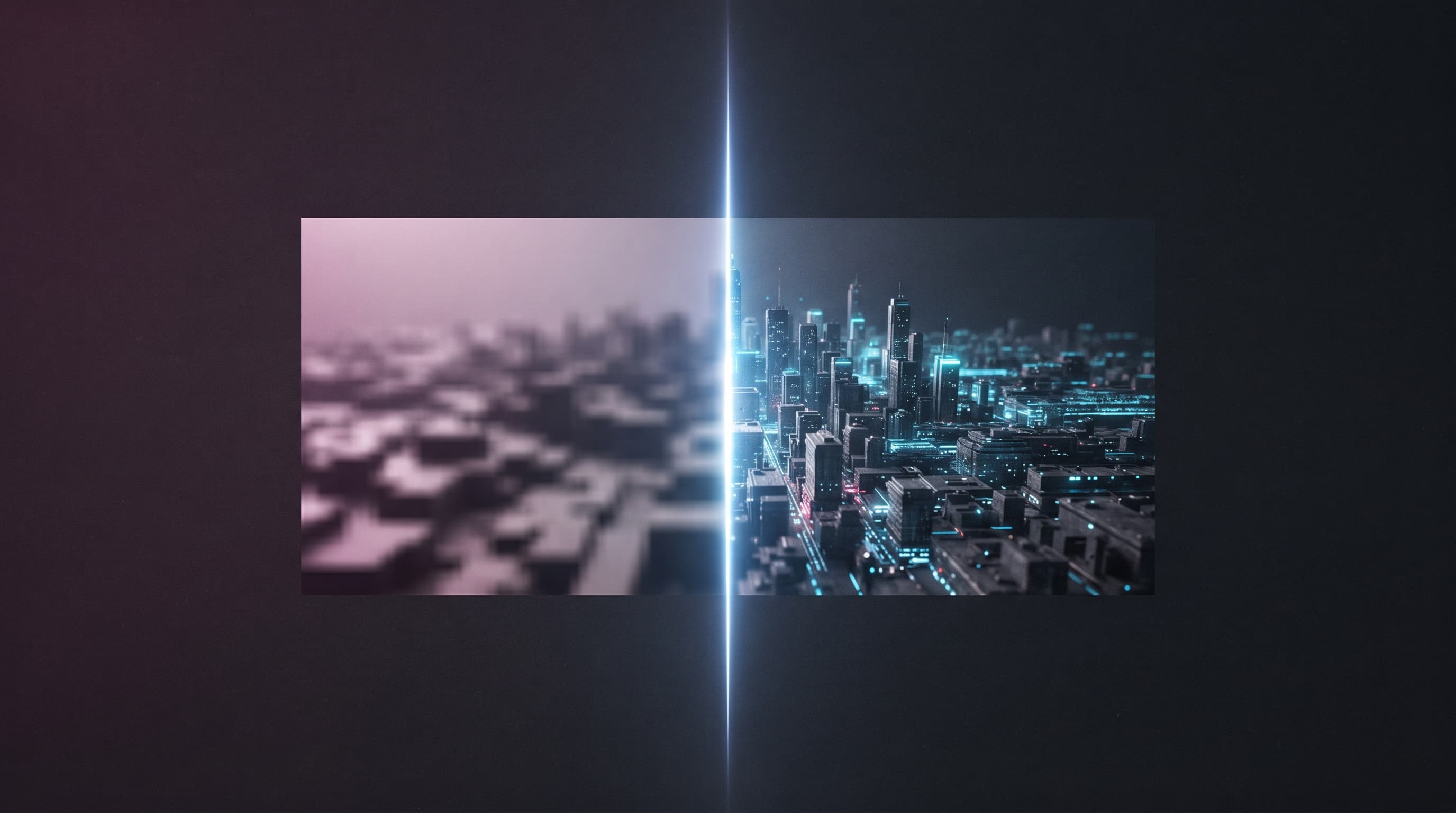
AI image upscaling isn't like traditional resizing, which stretches pixels and produces a blurry result. It relies on models trained on millions of images to predict missing detail and rebuild it realistically. The real question isn't "is the tool good?" but "which tool fits the image type and use case you actually need?" — and that's what this comparison answers.
Quick Comparison Table
Best for professional portraits and high-quality printing: Topaz Gigapixel AI (paid) • Best if you already use Lightroom: Adobe Super Resolution (included with Adobe subscription) • Best for the highest scale factor and enterprise workflows: Let's Enhance (paid, with an API) • Best for unlimited, fully free, offline upscaling: Upscayl (free, open-source) • Best for quick upscaling with no account: Upscale.media (free, with daily limits).
A Closer Look at Each Tool
Topaz Gigapixel AI
A paid desktop program specializing in restoring fine, realistic detail, and it particularly excels at portraits, convincingly reconstructing skin texture and hair strands instead of the artificial look weaker tools produce. Best for anyone who needs maximum quality for printing or professional projects and doesn't mind paying for it. Its main downside is that it's a desktop program requiring installation and a fairly capable machine to process large images.
Adobe Lightroom Super Resolution
A built-in Lightroom feature that produces excellent quality at 2x upscaling, with clean results free of obvious artifacts, though slightly softer than Topaz. Best for photographers already working within the Adobe ecosystem who don't want a separate extra program. Its downside is that it doesn't support 4x upscaling in a single pass, and it does require an active Adobe subscription.
Let's Enhance
A web tool offering the highest scale factor among popular options, with several dedicated modes such as one that preserves text sharpness and another for restoring old photos. Best for online stores or teams that need bulk image processing via an API instead of manual uploads. Its downside is that it's entirely cloud-based, meaning your images are uploaded to external servers — worth noting if you're working with sensitive images.
Upscayl
A free, open-source desktop app that runs entirely offline, using the same Real-ESRGAN model family relied on by many paid tools. Best for anyone who wants unlimited upscaling with no fees, no account, and no watermark — especially for private images you'd rather not upload to any server. Its downside is that speed depends entirely on your GPU's power, and it can be slow on weaker machines.
Upscale.media
A free web tool that works directly in the browser with no account required, producing noticeably sharp results, especially with skin texture and fabric. Best for a quick, limited task — upscaling one or two images every now and then. Its main downside is a limit on the number of images per session and a relatively small maximum file size, making it impractical for repeated use or large batches.
Mistakes That Hurt Upscaling Quality
Upscaling a heavily compressed image (low-quality JPEG) without first fixing compression artifacts • Chaining the upscale process multiple times on the same image hoping for finer detail, when the actual result is usually further degradation, since the model starts inventing detail that isn't real • Using a source image that's very small (under 256px on the longest side) and expecting a high-quality print-ready result.
Verdict: Which Tool Should You Choose?
If you're already paying for professional quality and need the best possible result for printing or portraits, Topaz Gigapixel AI is worth the price. If you want an unrestricted free tool and don't mind installing software, Upscayl is the smarter choice. If you just need to upscale one or two images quickly from the browser, Upscale.media covers the need without any complexity.
Frequently Asked Questions
Can AI upscaling fix a photo blurred by motion?
Not reliably. Upscaling is designed to recover detail lost to low resolution, not to fix motion blur or a shot that was out of focus — those are different problems that need other specialized tools.
Do you actually need a paid tool, or is free enough?
The gap between free and paid tools has narrowed a lot in 2026. You only need a paid tool in two cases: high-volume, repeated professional work, or poster-size printing that demands the maximum possible fine-detail accuracy.
Conclusion
There's no single "absolute best" upscaler — there's the tool best suited to your specific case. First decide: do you need full privacy (Upscayl), the highest possible quality (Topaz), or fast, no-fuss simplicity (Upscale.media) — then choose based on that instead of randomly trying everything.
Read also
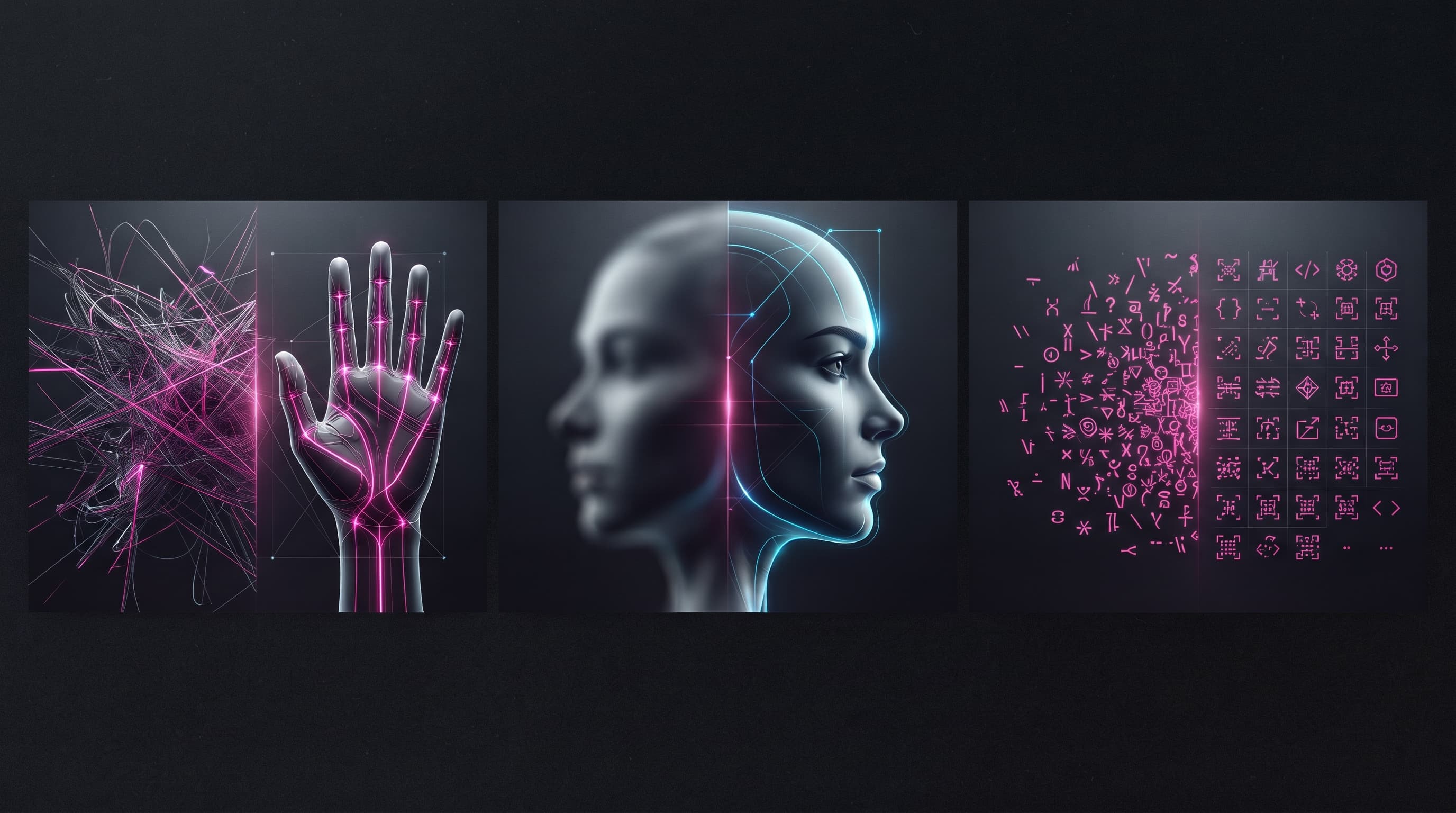
How to Fix Hands, Faces, and Text in AI-Generated Images
Six-fingered hands, warped faces, and text that looks like random symbols. These are the three most common AI image problems, and each one has a specific fix you can apply today.
Consistent AI Characters: How to Keep the Same Face Across Multiple Generations
You generate a great image of your character, then ask for a second one and get a completely different face. This is the most-searched pain point for AI image users, and the fix is simpler than you'd think.
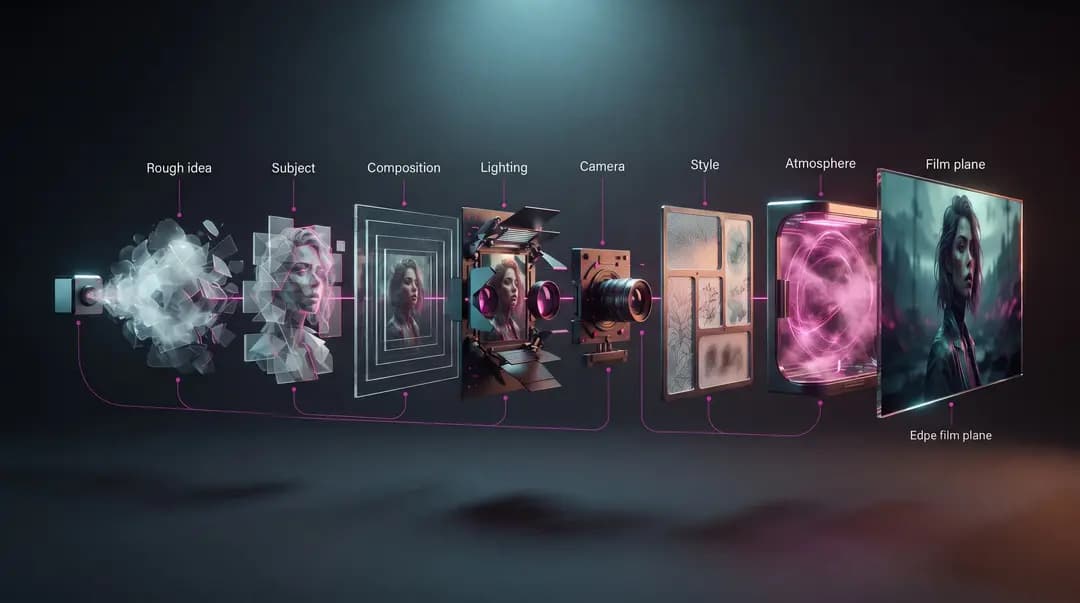
How to Write the Perfect AI Image Prompt: A Step-by-Step Guide
Learn how to turn an idea into a clear, actionable AI image prompt—from subject and composition to lighting and style—then use a practical workflow to evaluate and refine the result step by step.